Your first flight
From a new account to a paid charter: set up, pick a charter, dispatch it, fly it and get paid.
- 1Set your simulator and SimBrief ID
- 2Choose the aircraft
- 3Pick a charter
- 4Read the details and book it
- 5Generate the dispatch in SimBrief
- 6Download the tracker
- 7Load the aircraft and start the flight
- 8Land, park and submit
Set your simulator and SimBrief ID
Open Profile from the menu under your avatar. Choose the simulator you fly, so you are only offered aircraft it has, and type your SimBrief pilot ID or username so flight plans come back to the portal by themselves. Save.

The outlined part is what to look at or press.
Choose the aircraft
Go to Flights, Charters. At the top, pick the aircraft you will fly. Without one of your own, the public aircraft parked at your airport are listed: you rent them by the hour flown.

The outlined part is what to look at or press.
Pick a charter
The board lists the flights that aircraft can make from where it is: passengers, cargo or medical, with the destination, distance and pay. Click one to see its details.

The outlined part is what to look at or press.
Read the details and book it
The details show the route on a map, the client, the time you have to fly it and what it pays. Press Book. One flight at a time: you can cancel it later if you change your mind.

The outlined part is what to look at or press.
Generate the dispatch in SimBrief
You land on your flight's page. Press Generate dispatch: SimBrief opens in a small window with the aircraft, passengers and cargo already filled in. Press Generate there; the window closes by itself and the plan appears here.

The outlined part is what to look at or press.
Download the tracker
Operations, Tracker. Download the tracker and unzip it anywhere on your PC. It runs on Windows beside the simulator and needs FSUIPC7 for MSFS (the free version is enough) or XPUIPC for X-Plane.

The outlined part is what to look at or press.
Load the aircraft and start the flight
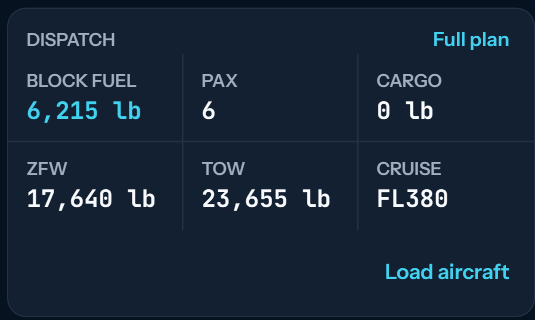
With the simulator at the departure airport and the right aircraft loaded, sign in to the tracker with your portal email and password and press Load aircraft: fuel and payload are set as dispatched. Then press Start flight and fly.
Land, park and submit
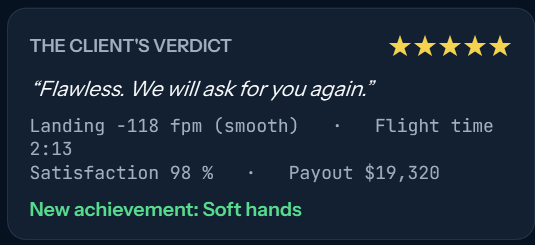
Land at the destination, park with the parking brake set and press Submit flight. The client rates the flight in stars, and the pay, minus rental, fuel and fees, lands in your balance.